Running the Application
This page explains how to run the main application and interact with its graphical user interface (GUI).
Running the Code
Navigate to the src/ directory and execute the main entry point:
Windows (CPU / Standard Shell)
python main.py
WSL / Linux (GPU Accelerated)
source ~/my_venv/bin/activate
python main.py
GUI Dashboard Layout
Once launched, the VIOLENCE DETECTION SYSTEM dashboard appears. It is designed with a dark, high-contrast theme suitable for security environments.
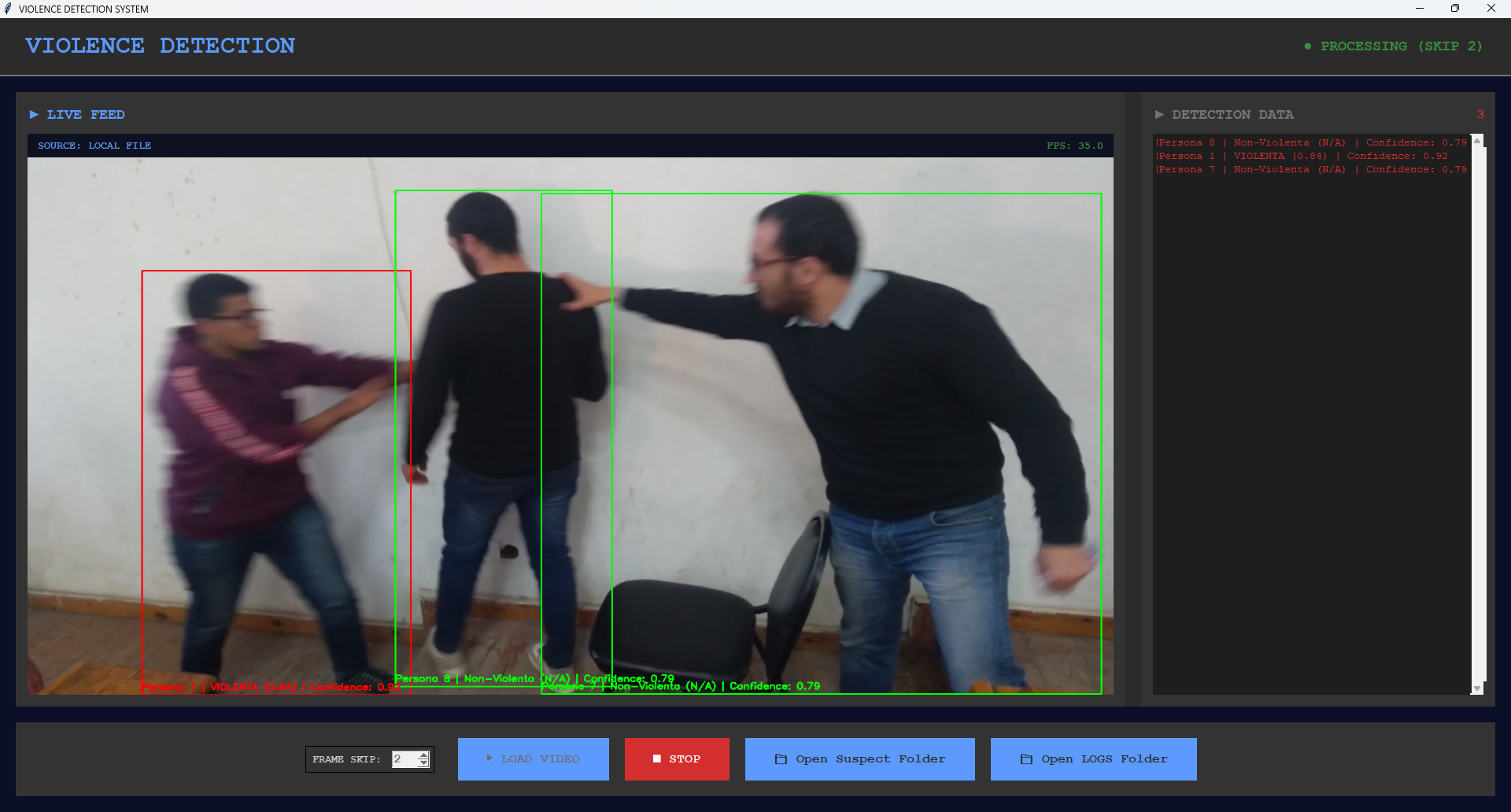
The layout is split into three main areas:
1. Header & Live Status
- Title: Branding header (
VIOLENCE DETECTION). - Status Indicator: Displays system status in real-time:
● STANDBY(Gray): The system is ready and waiting for video input.● PROCESSING (SKIP N)(Green): Active analysis is running on the video stream.
2. Main Work Area (Split Panel)
- Left Panel: Live Feed
- Renders the video feed with bounding boxes, skeletal lines, and label overlays.
- Shows the video source type (e.g.,
SOURCE: LOCAL FILE). - Displays the active processing speed in FPS (Frames Per Second) at the top-right corner.
- Right Panel: Detection Data
- Displays a running list of detections occurring in the active frame.
- Displays a count indicator showing the number of current detections in real-time.
- Highlights critical safety detections (such as
knifeorVIOLENTA) in red to capture the operator's attention.
3. Footer Controls
- Frame Skip (Spinner): Sets how often the model runs inference.
- Adjustable between
1(run on every single frame) and5(run on 1 frame out of 5). - Frame skipping decreases processing overhead (useful on low-spec hardware) while the internal sequence buffer remains aligned.
- Adjustable between
- Load Video: Opens a file explorer dialog supporting
.mp4,.avi,.mov, and.mkvfiles. Selecting a file initializes the AI pipeline. - Stop: Immediately halts video playback and releases memory handles, returning the system to
STANDBY. - Open Suspect Folder: Opens the local
suspect/folder using your operating system's file browser. - Open Logs Folder: Opens the local
logs/folder.
Understanding Pipeline Alerts
As the system processes videos, it automatically logs threats and takes visual records:
[LIVE SCREEN OVERLAY]
Red Box: "Sospetto CON COLTELLO 2 | VIOLENTA (0.87) | Confidence: 0.94"
   ▲            ▲             ▲            ▲
Prefix       Track ID     LSTM Prob    Keypoint Det Conf
Face Crop Capture (suspect/)
When a person's threat status is elevated to Knife Suspect (Sospetto CON COLTELLO) or Violent Action (VIOLENTA), the system:
- Calculates the region of interest for their face based on YOLO-Pose facial keypoints (eyes, nose, ears).
- Crops the face area from the clean, original frame.
- Saves it under:
suspect/face_susp_[person_id]_[timestamp].jpg
This photo index serves as a quick reference database for security reviews.
Event Logging (logs/)
All threat occurrences are logged in text files within the logs/ folder, structured by date (e.g., logs/log_20260616.txt).
Log entries follow this standard format:
2026/06/16-23:54:12 Sospetto CON COLTELLO 2 | VIOLENTA (0.87) | Confidence: 0.94
These logs can be parsed programmatically or reviewed manually.